If you cannot find the answer you need in the Help Center, you can submit a support ticket directly from within eRegs. Our team typically responds within one business day.
Before submitting
Check the Help Center first — your question may already be answered. You can browse by category or use the search bar at the top of the Help Center page.
How to submit a ticket
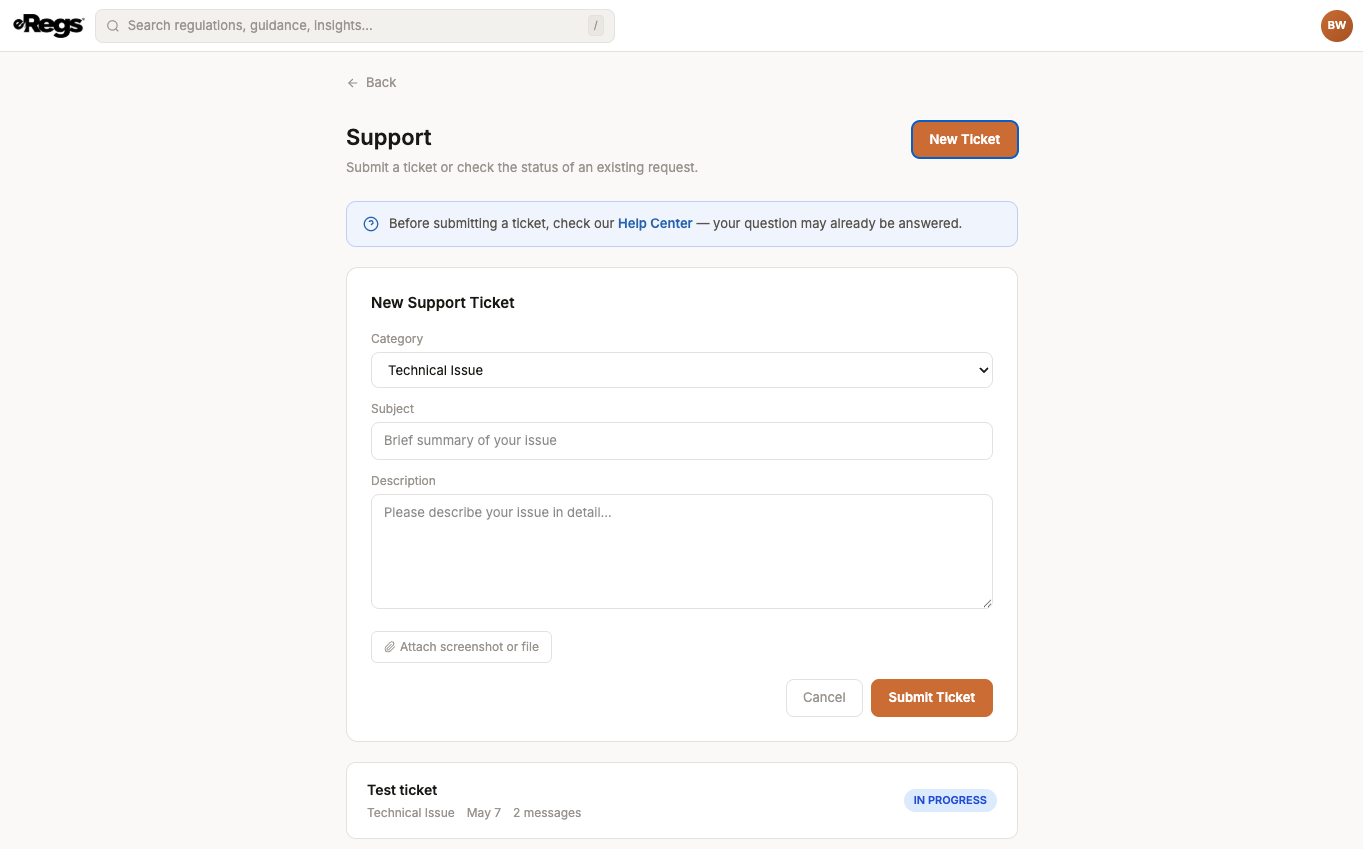
- Tap your avatar in the top-right corner and select Support.
- Click New Ticket.
- Select a category that best describes your issue (e.g. Billing, Technical, Feature Request).
- Enter a subject — a brief summary of your question or problem.
- Write a description with as much detail as possible. The more context you provide, the faster we can help.
- Optionally, attach a screenshot to illustrate the issue.
- Click Submit Ticket.
Checking your ticket status
Your Support page shows all tickets you have submitted, each with a color-coded status badge:
- Open (yellow) — your ticket has been received and is awaiting review.
- In Progress (blue) — a support team member is actively working on your issue.
- Resolved (green) — the issue has been addressed. Review the response to confirm.
- Closed (gray) — the ticket is complete and no further action is expected.
Replying to a ticket
Click into any ticket to view the full conversation thread. You can reply at any time to provide additional information. Replying to a Resolved or Closed ticket will automatically reopen it so the team knows to follow up.