Notes let you attach your own commentary, reminders, or interpretations to any regulation paragraph. Notes are private to your account and sync across all your devices.
Adding a note
- Tap any paragraph in the regulation reader. An action bar appears at the bottom of the screen.
- Tap the note icon (pencil/paper) in the action bar.
- A note panel slides open showing a preview of the paragraph text and a text field below it.
- Type your note and tap Save Note.
A small note indicator will appear next to the paragraph so you know a note is attached.
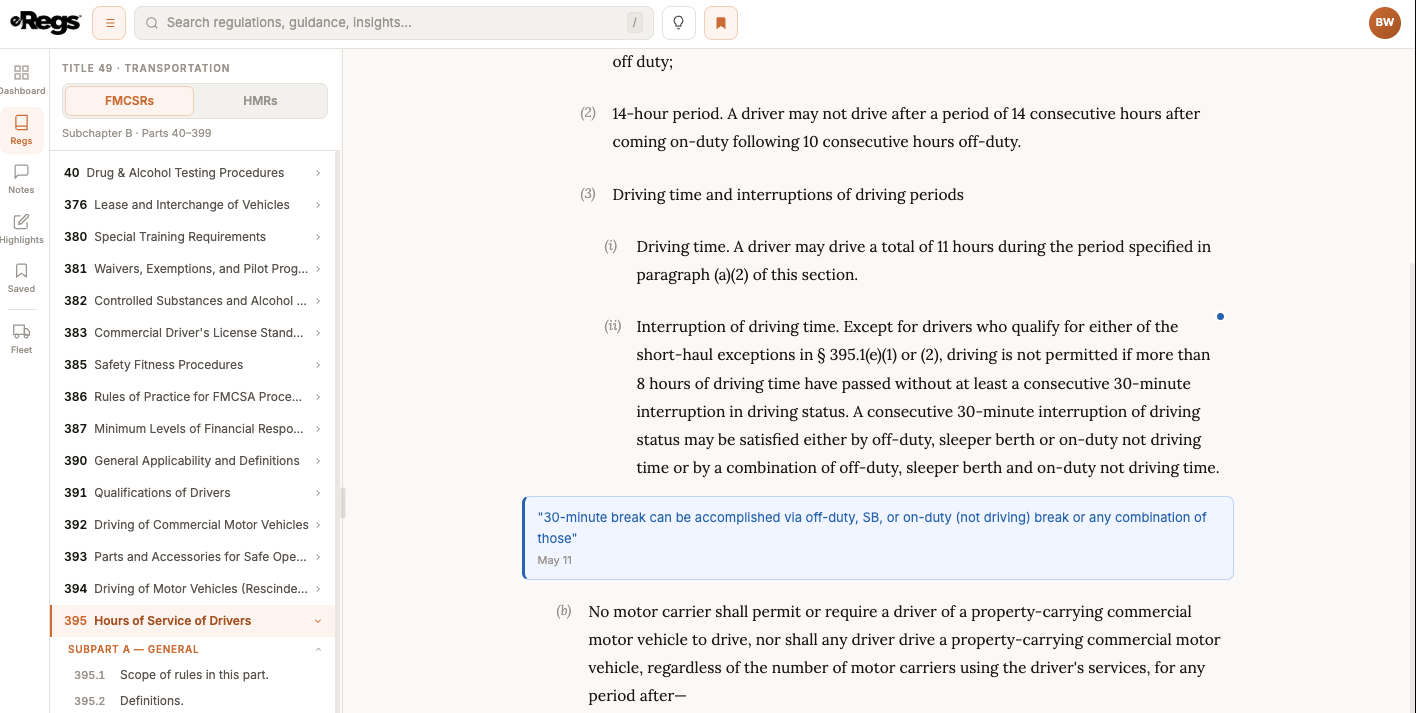
Editing or deleting a note
- Tap the paragraph that has a note (look for the note indicator).
- Tap the note icon in the action bar. The note panel opens with your existing note pre-filled.
- Edit the text and tap Update Note, or tap Delete to remove it entirely.
Viewing all your notes
- Mobile: Tap the Library tab in the bottom navigation bar, then select Notes.
- Desktop: Navigate to /notes from the sidebar or your dashboard.
Each note shows the paragraph it is attached to, the section and part number, your note text, and the date. Tap any entry to jump to that paragraph in the reader.