Highlights let you mark important paragraphs so you can find them quickly later. Highlighted text is also monitored for regulation changes — eRegs will notify you if the language you highlighted is amended.
How to highlight a paragraph
- While reading a regulation section, tap any paragraph. An action bar appears at the bottom of the screen.
- Tap the highlight icon (marker pen) in the action bar.
- The paragraph is immediately highlighted with an accent background color.
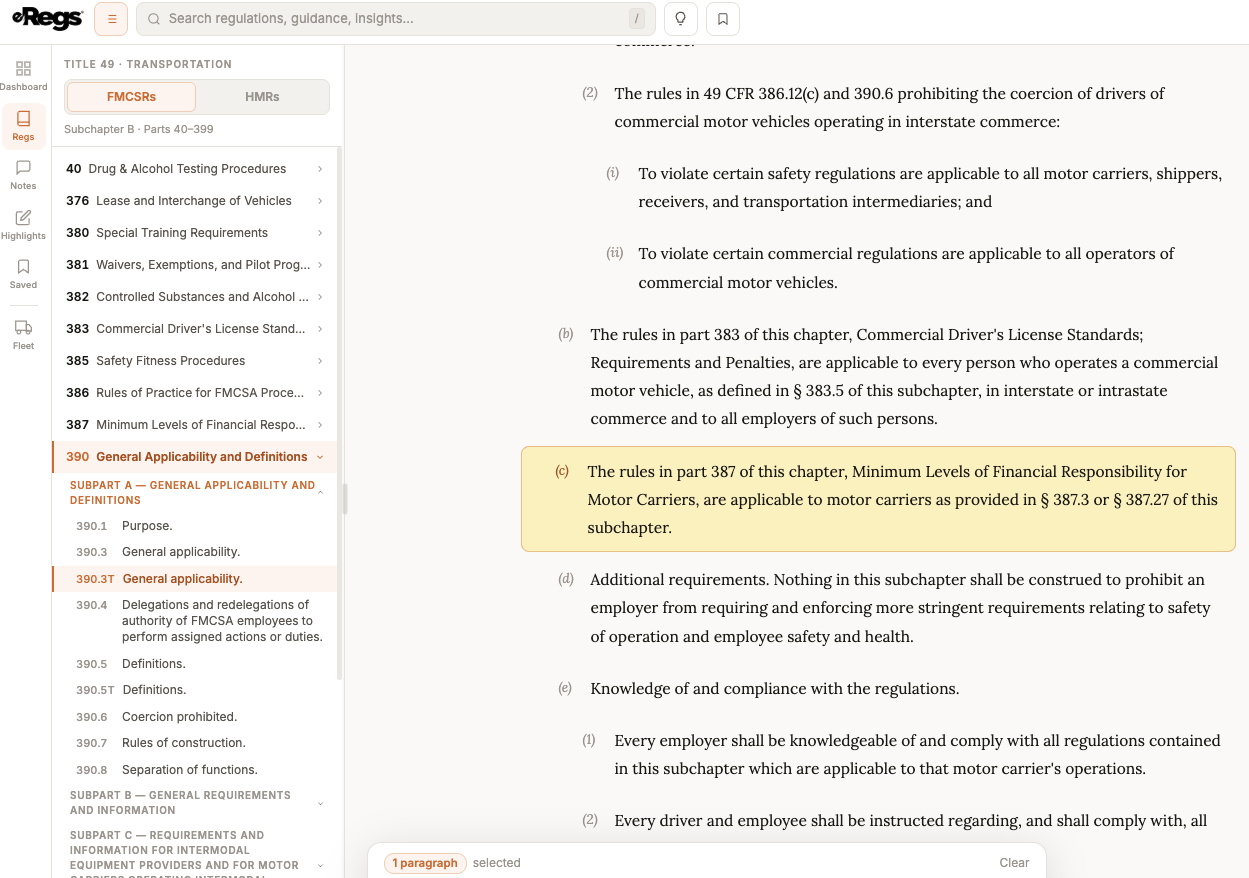
Viewing your highlights
- Mobile: Tap the Library tab in the bottom navigation bar, then select Highlights.
- Desktop: Navigate to /highlights from the sidebar or your dashboard.
Each highlight shows the paragraph text, its section and part number, and the date it was created. Tap any highlight to jump directly to that paragraph in the reader.
Removing a highlight
Tap the highlighted paragraph in the reader to bring up the action bar again. Tap the highlight icon a second time to remove the highlight. It will also be removed from your Highlights list.
Change notifications
If a paragraph you have highlighted is amended in a future eCFR update, eRegs will flag it on your Activity & Changes page and, if push notifications are enabled, send you an alert. See Version History, Show Changes, and Regulation Updates for more detail.