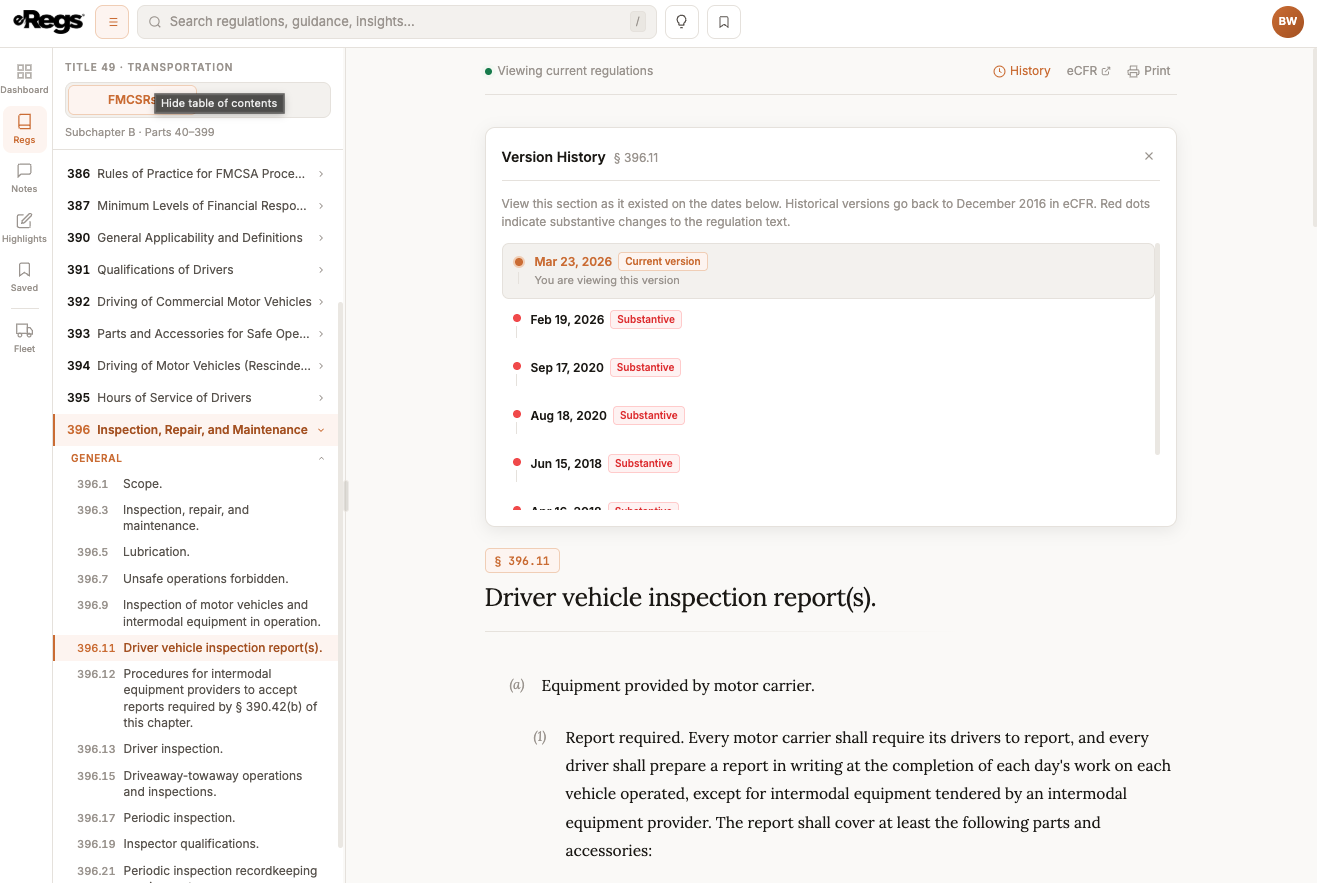
The regulation reader is the core of eRegs. It displays the full text of every FMCSR (and HMR) section in a clean, readable format with tools for navigating, annotating, and tracking changes.
Table of Contents (TOC) Sidebar
The left sidebar lists all regulation parts organized by number. Click any part to expand it and see its subparts and sections.
- Desktop: The TOC sidebar is always visible by default. Collapse it by clicking the list icon in the top navigation bar to give the reading area more space.
- Mobile: Tap the section pill at the top of the screen (it shows your current Part and Section number) to open the Table of Contents as a full-screen overlay.
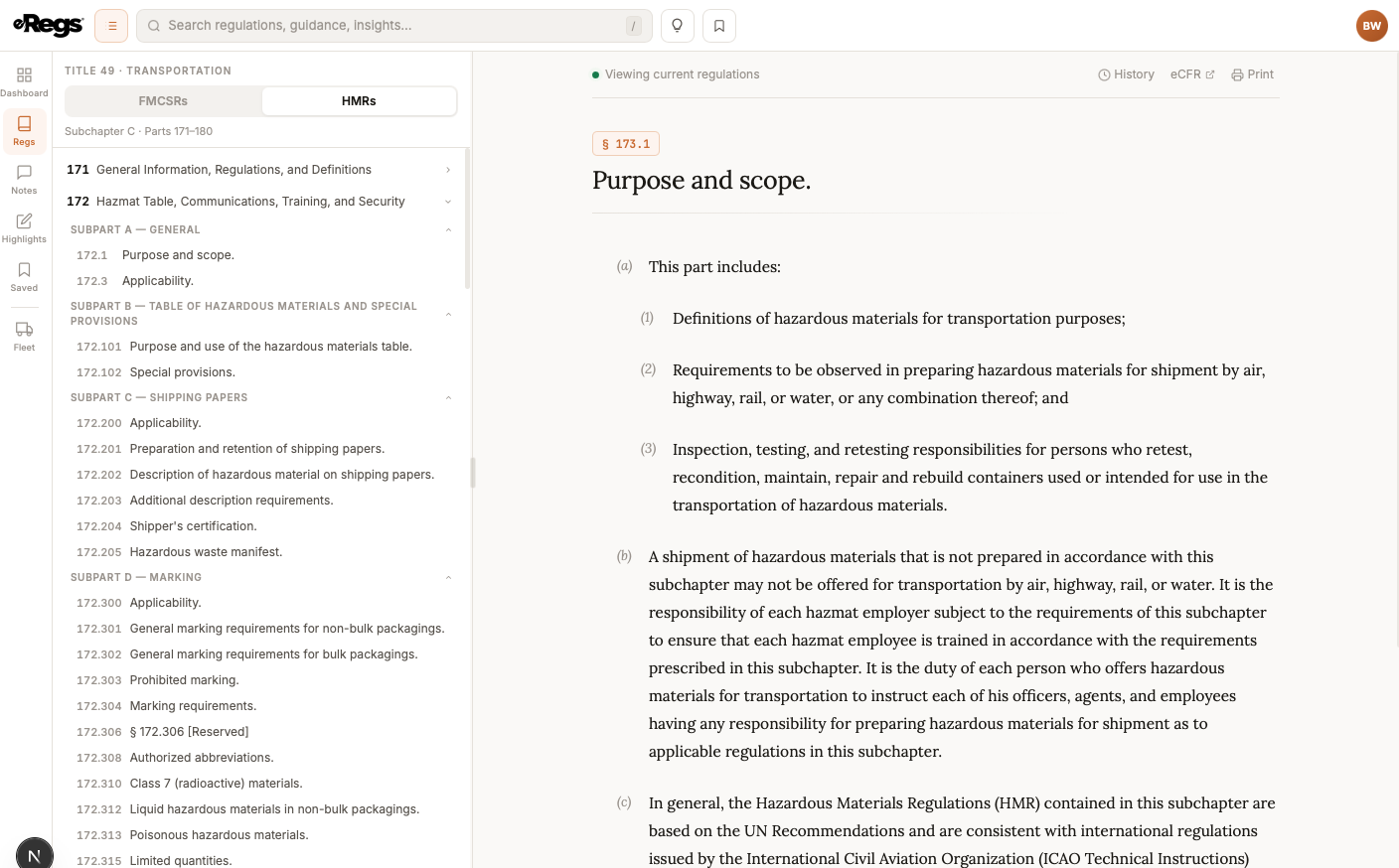
Reading a section
Tap any section in the TOC to navigate to it. The regulation text is formatted for readability:
- Paragraph labels such as (a), (b), (1), (2) appear in the left margin for easy reference.
- Indentation visually groups nested paragraphs so the hierarchy is clear.
- Tables render with headers and alternating row colors. Large tables include an expand icon you can tap to view them full-screen.
Navigating between sections
- Use the Previous and Next arrows at the bottom of each section to move sequentially.
- Click directly on a section in the TOC sidebar.
- Use Search — tap the Search tab in the bottom bar on mobile, or press the / key on desktop.
Version history
Click the clock icon in the top navigation bar while viewing a section to open the version history timeline. From there you can see when the section was last amended, view Federal Register citations, and compare text across dates. See Version History, Show Changes, and Regulation Updates for details.