Tablet Mode is designed for fleets that use shared in-cab tablets rather than personal mobile devices. Instead of emailing each driver individually, you register physical tablets and assign drivers to them.
Enabling Tablet Mode
- Navigate to Fleet → Settings.
- Toggle Tablet Mode on.
- A new Tablets tab appears in your Fleet navigation.
Registering a tablet
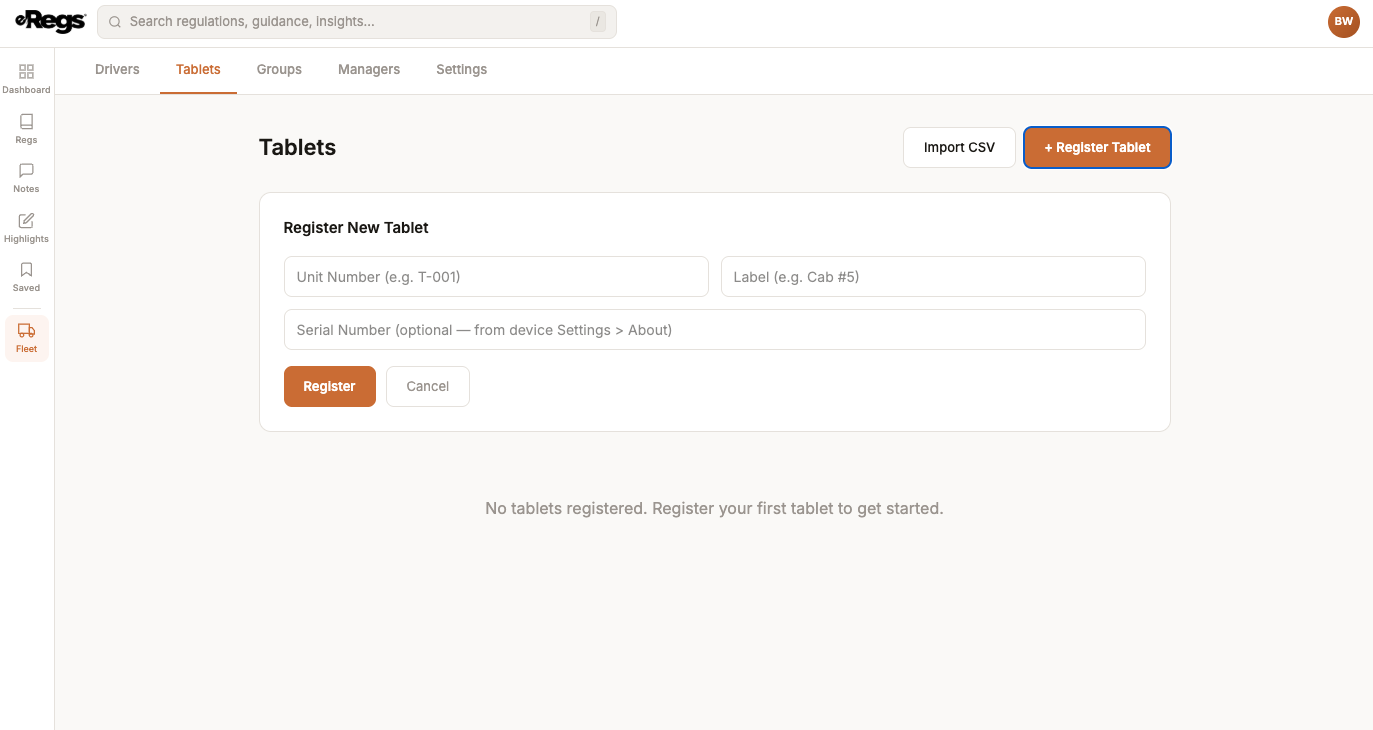
- Go to Fleet → Tablets.
- Click Register Tablet.
- Enter a unit number or label (e.g. "Truck 42") and the tablet's serial number (optional, for your records).
- eRegs generates a unique URL for that tablet.
- Open that URL on the physical tablet's browser and bookmark it or add it to the home screen.
Assigning drivers to tablets
- Single driver: Go to Fleet → Drivers, click the … menu on a driver row, then select Assign to Tablet. Choose the tablet from the dropdown.
- Bulk assignment: Check multiple driver checkboxes, then use the bulk action bar to assign them all to a tablet at once.
Once drivers are assigned, they will appear in the driver selection screen when the tablet URL is opened. See How Drivers Acknowledge on a Tablet for the complete driver-side workflow.
If your fleet uses managed or locked-down devices, see Using eRegs on Managed or Locked-Down Devices for whitelisting and MDM configuration.